

Are you wondering how to get your business on Google?
Did you know that 88% of consumers who do a local search on their smartphone visit or call a store within a day? Getting your business on Google isn’t just a nice-to-have; it’s essential for capturing local foot traffic and leads.
A business listing on Google and Google Maps is called a Google Business Profile (GBP) and they’re free!
If you have a physical store or location customers visit, then you should have had a GBP yesterday.
A Google listing helps your potential customers to find your location.
If you are an online business (without a physical storefront), you can also have a listing and choose whether to show your address or not.
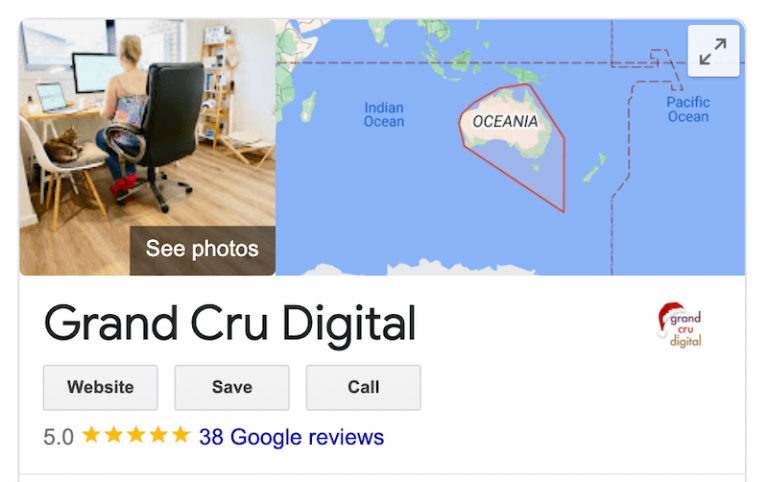
This is what we have done with the Grand Cru Digital listing:

There are many rules and regulations you must abide by for your GBP listing to show. Some of these include:
- Always keeping your business hours up to date, this means updating these if you’re closed for public holidays (here’s how to change business hours on Google)
- Using your real world business name (don’t add keywords, it looks tacky and Google may remove your listing)
- PO Boxes and remote mailboxes are not allowed (virtual offices are also a big no no)
You can check out the full list of Guidelines for representing your business on Google here.
So the question is, how exactly can you get your business on Google?
How to add/claim your Google Maps listing
If you’re business is new, then you’ll probably need to add your listing for the first time. If your business is established, then you will simply need to ‘claim’ it so that you own it and can edit it.
You can do this process on either a desktop computer or a mobile device.
- Simply navigate to the Google Business Profile website and click either Sign in or Manage now. You will need a Google account to do this. Don’t worry, if you don’t have one yet, as you’ll be guided through the process by Google.

2. Next you’ll be asked a series of questions. These will include:
- Your real world business name
- Your physical address
- If you deliver goods and services to your customers
- Your business category (it’s important you choose categories as specific as possible)
- Your phone number and website address

If your listing already exists, you will be able to select it at the first step when typing in your business name. When you select your business, you will be walked through the process of claiming the listing or requesting access to the listing (if it’s been previously claimed by someone else).
Bonus Tip: When adding in your business info, make sure this is as accurate as possible to ensure the right people see it. Also make a note of exactly how your NAP (name, address & phone number) is displayed so that you can use this as your default NAP information across the web. The more consistent your NAP is, the easier it is for Google to connect the dots and show your location more. E.g. Decide if you are going to use Street, or St for instance and stick to the same format for everything.
Verifying your Google Maps listing
Once you have gone through the above, you’ll need to then verify your listing. This is how Google will confirm you have a physical address and it is manned.
Google chooses how you can complete verification, and the methods have evolved significantly. While the classic postcard in the mail (which took us about 2.5 weeks back in 2018!) is still occasionally used, video verification is now the standard for most new businesses.
You will likely be asked to provide a continuous video recording that shows:
- Your location (street signs, nearby businesses).
- Your business equipment or storefront.
- Proof of management (unlocking the door, accessing the cash register).
If you’re one of the lucky ones, you may also be offered verification via an automated phone call, text message, or email. If you get one of these instant options, take it! It’ll be a heck of a lot quicker.

How to optimise your Google Business Profile
Now that you have your business listed on Google, and it’s verified you should complete the below checklist so you can get the upmost value from it:
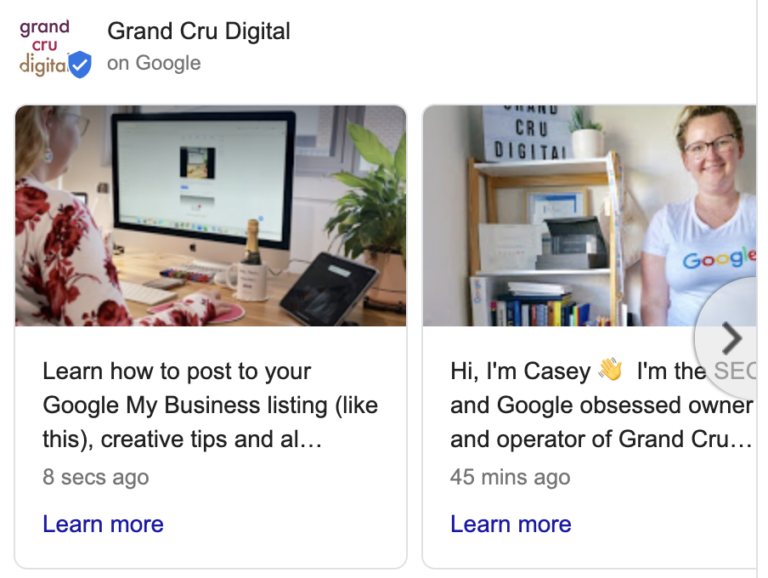
- Once logged into your Google Business Profile dashboard and you click on your listing, you’ll most likely be directed to the search results where you’ll see a special little dashboard like the below.
- You will then want to click on the Edit Profile option and work your way through each section. Don’t just skim this—fill out everything to give Google the most context about your business:
- Business Description: You have 750 characters. Front-load this with your most important keywords naturally, and clearly explain what makes your business unique.
- Categories & Attributes: Ensure your primary category is as accurate as possible. Then, add secondary categories and relevant attributes (e.g., “wheelchair accessible,” “women-led,” “free Wi-Fi”).
- Photos & Videos: Don’t just upload a logo. Add high-quality photos of your exterior (so people can find you), interior, team members, and products. Listings with photos receive 42% more requests for directions!
- Products & Services: Manually add your key products or services. This directly helps your profile show up when locals search for those specific offerings.

Bonus Tip: It is worth adding a reminder to your calendar every week (or monthly at a minimum) to go and check on your listing. Here is my weekly 30-minute Google Business Profile health check you can do.
If you need help with setting up and optimising your Google Business listing, please don’t hesitate to contact us.
We can also help to set up your Bing Places listing and your Apple Maps listing as well. All these business listings will help improve your local SEO so that more customers can find you.
Frequently asked Google Business Profile questions
Do I need a website to have a Google Business Profile?
No, you do not need a website to set up a Google Business Profile. However, having a website link on your profile highly increases your credibility and conversion rate. Google also offers a free, basic website builder within the GBP dashboard.
Can I hide my address on Google Maps?
Yes! If you are a service-area business (like a plumber) or an online business run from home, you can choose to hide your physical address. Instead, you will set up a “service area” highlighting the regions you deliver goods or services to.
Why isn’t my Google Business Profile showing up in search?
If your profile is brand new, it can take a few days to index. If it has been a while, ensure your profile is fully verified, your information is 100% accurate, and you are actively managing it by adding photos and gathering reviews to boost your local ranking.