

If your ideal customer searched for your services right now, what would they see on your Google Business Profile?
We are constantly keeping our ears to the ground to ensure our clients’ local search presence is as strong as possible. Recently, we tuned into a Google Posts 101 Workshop to see if there were any new tricks we should be implementing.
To be completely honest, because we already strictly follow Google’s best practices for our clients here at Grand Cru Digital, there weren’t too many surprises when it came to the basics. However, some incredibly handy new updates have been rolled out around scheduling and repeating posts that we knew we had to share with you.
Today, we’re going to walk you through exactly how to craft the perfect Google Post, check out the new dashboard features, and implement our agency tips to help you stand out in the local map pack.
Let’s dive in:
- What Are Google Posts?
- Step 1: The GCD Best Practices (What Actually Works)
- Step 2: Utilise the New Native Scheduling Tool
- Step 3: Set Up Repeating Posts for Evergreen Offers
- Need help managing your local SEO?
What Are Google Posts?
Think of Google Posts as mini social media updates that appear directly on your Google Business Profile when someone searches for your business or your type of business “near me” on Google Search or Maps.
They are the perfect way to communicate directly with potential customers right when they are at their highest intent, actively looking at your business! You can share general updates, limited-time offers, or local events.
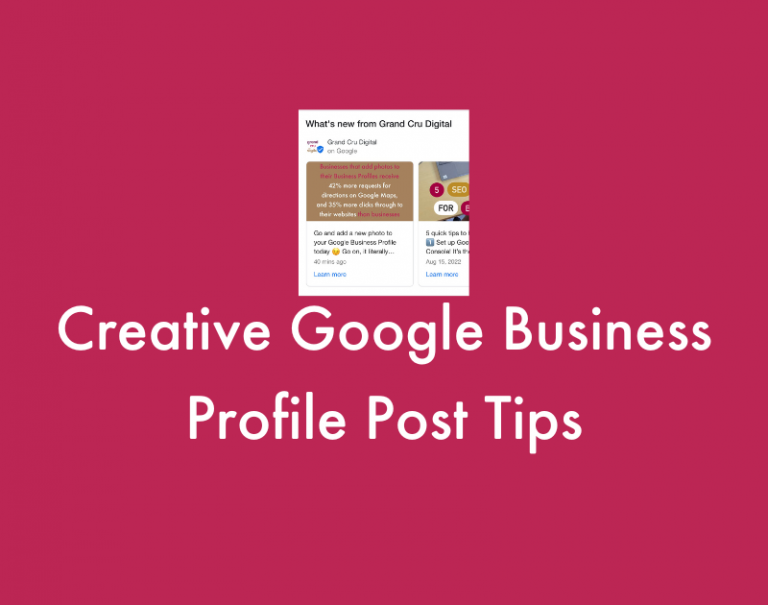
Here is an example of how Google posts how up on your Google Business listing on desktop on the search results:

Step 1: The GCD Best Practices (What Actually Works)
We manage Google Profiles for small businesses all over Australia, and over the years, we’ve gathered our own internal data on what works. Here is what the GCD family recommends for a winning Google Post strategy:
- Keep it punchy: You have up to 1,500 characters, but only the first few words are visible before someone has to click “read more”. Put your most important, eye-catching information right at the front.
- High-Quality images are non-negotiable: Just like we wouldn’t use blurry photos to show off the Bellarine Peninsula, you shouldn’t use blurry photos for your business. Use self-made, bright, clear, and well-cropped images. When it comes to sizing, we’ve found that a 4:3 image ratio is the absolute sweet spot. Aim for 720 x 540 pixels to ensure your photos look crisp and don’t get awkwardly cropped on mobile or desktop. Pro tip: Avoid images with too much text overlaid on them, as Google sometimes rejects these or crops them unexpectedly.
- Videos Work Wonders, Too: You aren’t just limited to photos! You can upload videos to your Google Posts to really catch a searcher’s eye. Just keep in mind Google’s limits: videos must be 30 seconds or shorter, up to 75 MB in file size, and 720p resolution or higher.
- Use Emojis Strategically: Emojis are a fantastic way to draw the eye, but moderation is key. We recommend using a maximum of 3 emojis per post. Make sure to place them in the first couple of lines, so they actually appear before that “more” cut-off!
- Always Use a Call to Action (CTA): Google gives you handy buttons like “Learn more”, “Book”, “Order online”, or “Call now”. Always include one!
Here’s what we see for our clients: In our local SEO campaigns, Posts with a clear “Learn more” button linking back to a specific, relevant page on the website have a significantly higher engagement rate than posts with no button at all.

Step 2: Utilise the New Native Scheduling Tool
As industry sites like Search Engine Roundtable have been reporting recently, Google is constantly tweaking the Business Profile dashboard. The most exciting takeaway for business owners right now is the focus on new native scheduling features.
Previously, if you wanted to schedule a Google Post, you had to pay for a third-party social media scheduling tool. Now, Google is rolling out the ability to schedule your posts directly within the interface.
How to do it:
- Head into your Google Business Profile dashboard.
- Click on “Add update” or “Add offer”.
- Draft your post as usual, add your image, and select your CTA button.
- Instead of hitting “Post”, look for the new Schedule toggle (located below the post description box) to pick your future date and time.


This means you can sit down with a coffee from Staple Eatery (my fav coffee shop) on a Monday morning, write out your posts for the month, and schedule them to go live weekly.
Step 3: Set Up Repeating Posts for Evergreen Offers
Alongside scheduling, the ability to set up repeating posts is a massive time-saver for small businesses.
If you have a standing offer (like “10% off for new customers”) or a weekly special that doesn’t change, you can now set it to republish automatically. Since older Google Posts naturally get pushed down as you add new ones, this keeps your best evergreen offers right at the top of your profile without you having to manually recreate them every week.


By taking just a few minutes a week to batch and schedule these updates, you’re improving your customer communication and giving your local SEO a lovely, consistent little boost.
Pro tip: Set a recurring calendar reminder for yourself (for example, once a month or every quarter) to jump back in and freshen up your repeating posts with a new image or video. This keeps your evergreen offers looking current and active!
Need help managing your local SEO?
If the idea of managing another digital platform and keeping up with Google’s constant updates makes your head spin, we get it. That’s exactly what Grand Cru Digital is here for.
We specialise in offering transparent, proactive, and personalised SEO and Google Ads services.
Reach out to Casey and Morgan today to have a chat about how we can help your business get found online!